
Welcome to O&O DiskImage 22!
Thank you for choosing O&O DiskImage 22!
With O&O DiskImage, you can reliably back up your data and restore it quickly in an emergency — whether it’s your entire PC, individual hard disks and partitions, or just specific files and folders.
A previously created backup can be restored with just a few clicks — even if Windows is no longer able to start. This ensures that your data, your system, and your work are protected at all times.
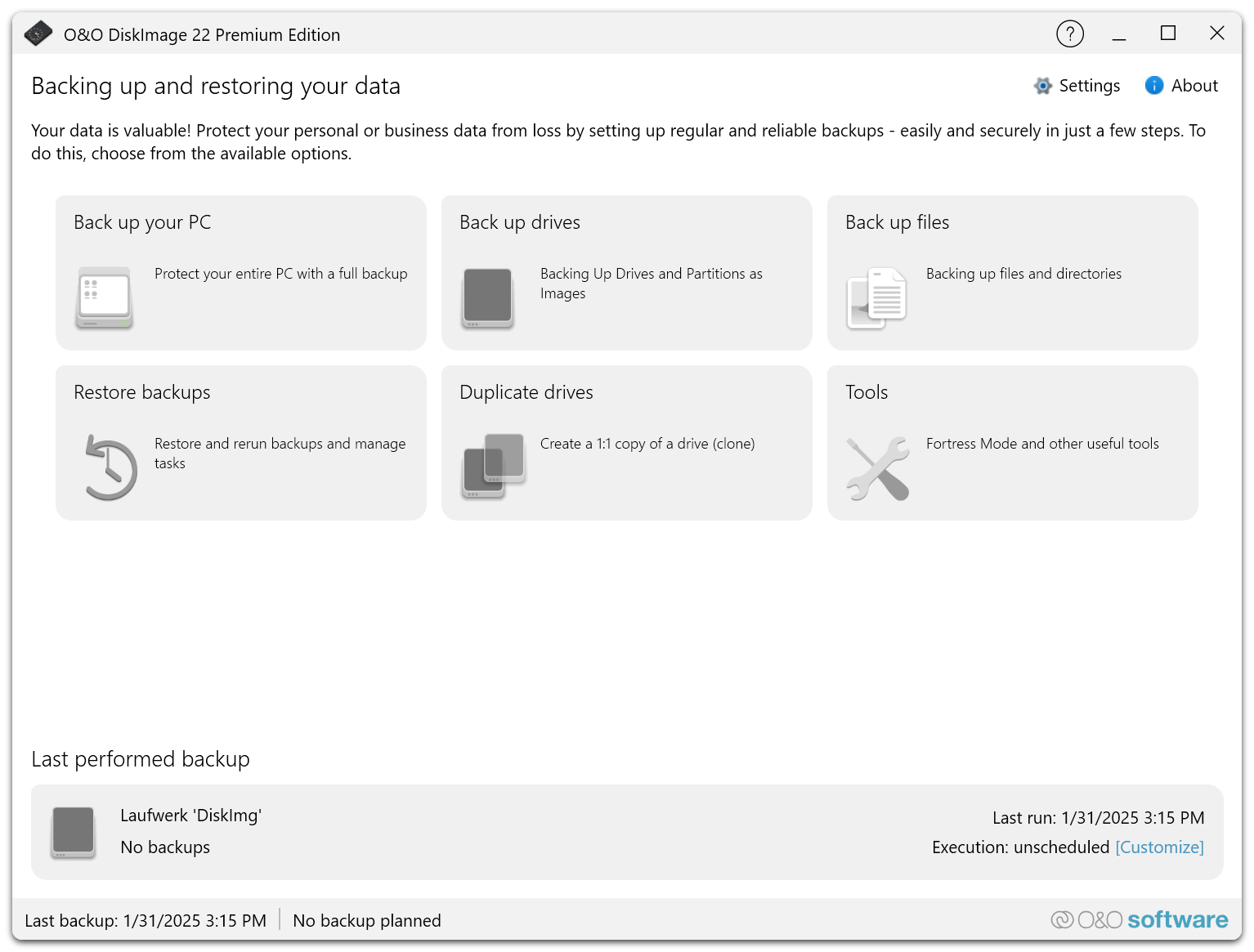
Your benefits at a glance
- Complete images of your entire PC or individual drives:
Create sector-based backups of your entire system environment or individual disks — ideal for full system images and fast recovery. - File and folder backup for targeted protection:
Back up individual files, folders, or entire directory structures when a full image is not required. - Automated backups on a schedule:
Choose whether backups should run daily, weekly, or monthly. O&O DiskImage handles everything automatically in the background. - Restoration even without bootable Windows:
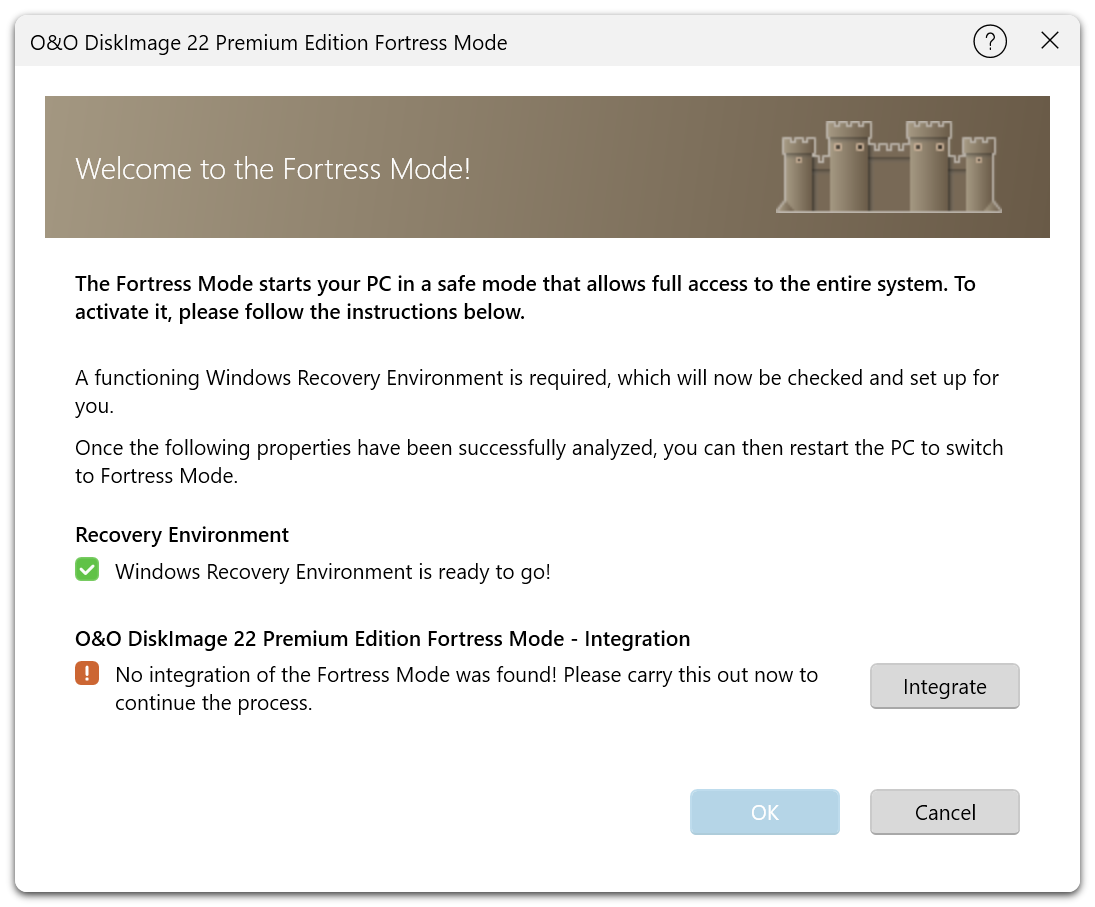
Thanks to the integrated boot environment (WinRE), you can restore your backups even if Windows no longer starts. - Support for modern systems:
Full support for SSDs, UEFI, and GPT systems — including TRIM.
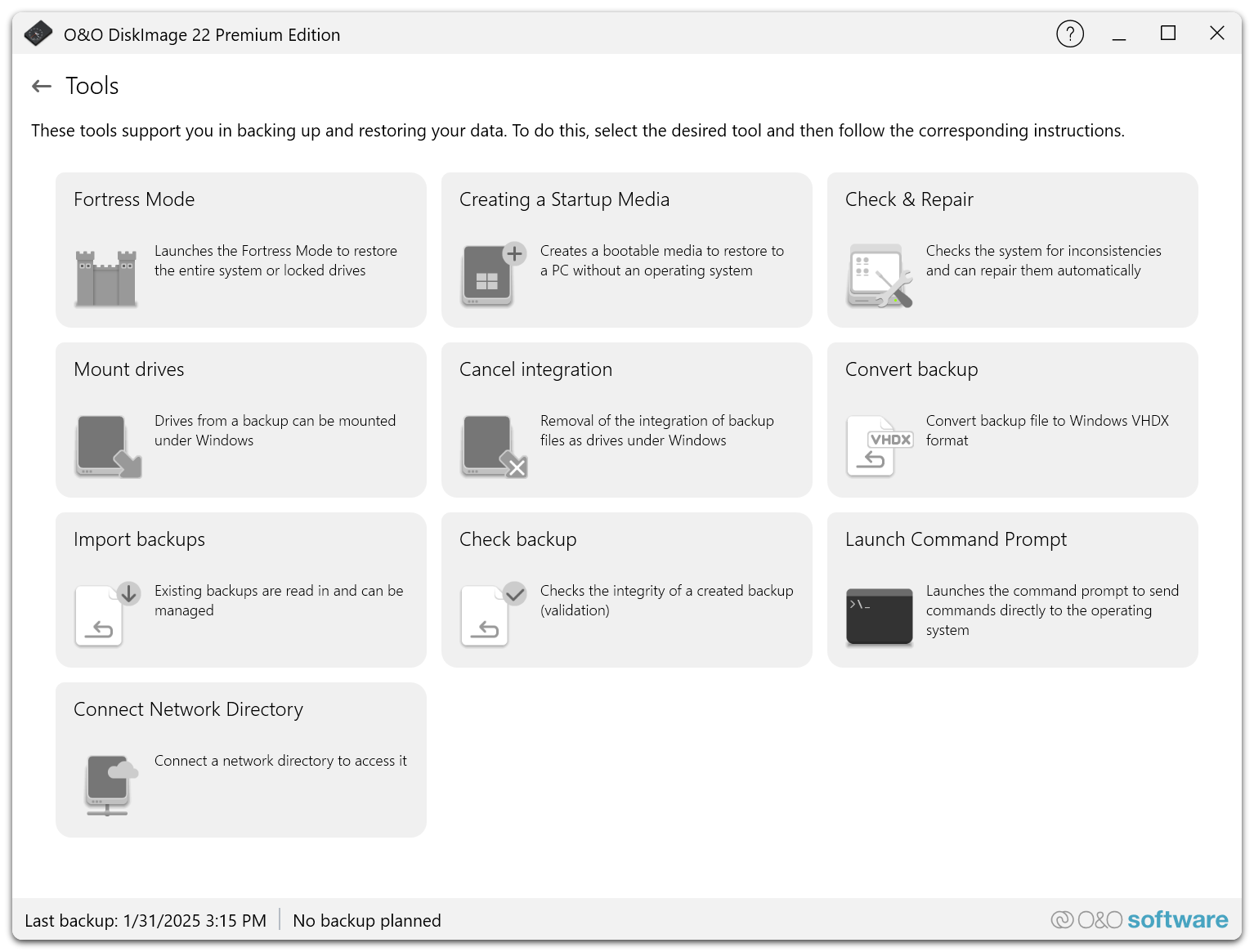
Additional benefits through integrated tools
- Create boot medium:
Create a bootable recovery medium or integrate O&O DiskImage directly into the Windows Recovery Environment (WinRE). - Create To-Go system:
Create a portable Windows system (“Windows To Go”) including all programs, data, and settings — ideal for emergencies and hardware migration. - Verify backup:
Check your backups for integrity to ensure they can be reliably restored when needed. - Mount image as drive:
Open backups like a normal drive in Windows Explorer to quickly recover individual files. - Clone disk:
Clone entire disks — perfect for moving to new hardware or migrating to SSDs. - Device information & analysis:
Monitor the health of your drives, e.g. using SMART values and detailed disk information. - Scripts & advanced functions:
Use command-line tools and scripting options for professional, automated backup scenarios.
Getting started
After installation and the first launch, you can easily activate O&O DiskImage:
- “I want to enter my license” if you already have a license key.
- “Purchase a license” to buy the appropriate edition now.
- “Start trial version” if you would like to test O&O DiskImage first.
Recommended first steps
1. Integrate O&O DiskImage directly into Microsoft Windows
Open “Tools” on the start page and select “Create boot medium”. This integrates the O&O DiskImage boot environment into the Windows Recovery Environment (WinRE), making it available at system startup.
2. Perform your first full backup
Go to the “Drive Backup” tab and start a full or 1-Click backup. Depending on the amount of data, this may take some time — you can continue working normally during the process.
3. Set up automatic backups
In the “Schedule” tab, you can specify whether backups should occur daily, weekly, or monthly. Your data will always be up to date without you having to remember it.
Restoring in an emergency
If Windows fails to start, the O&O DiskImage boot environment will open automatically. From there, you can select your previously created backups and restore them with just a few clicks — either completely or only specific data.
Tips for even more security
- Backup to an external device: Save your backup additionally to an external hard drive or network location.
- Image on a USB stick: Keep a current boot medium ready so you can act at any time.
- Different storage locations: Use at least two different backup locations (e.g., external drive + NAS).
Further information
Detailed instructions, tips, and best practices can be found on our product page:
O&O DiskImage – Backup & Recovery
Wishing you success and security with O&O DiskImage 22!
For personal or business use — you have made the best choice to protect your data from loss. We wish you peace of mind in your daily work with your PC!