
Thank you for installing O&O Defrag 30!
What is O&O Defrag?
Over time, PCs slow down due to many factors. The main reason is fragmented storage of files on hard disks and SSDs. Defragmentation reorganizes file fragments on the disk or SSD so that files can be recognized and processed by the hardware much faster. This saves you both time and money!
Getting Started with O&O Defrag
After the first launch of O&O Defrag, you can enter your license by clicking on “I want to enter my license or purchase one.”
With its intelligent “Install & That’s All” technology, O&O Defrag 30 automatically determines the best settings and defragmentation methods for your computer and its hardware. Depending on whether HDDs or SSDs are present, the appropriate optimizations are carried out regularly to keep your PC’s performance at its best.
Of course, you can still make your own adjustments if you prefer.
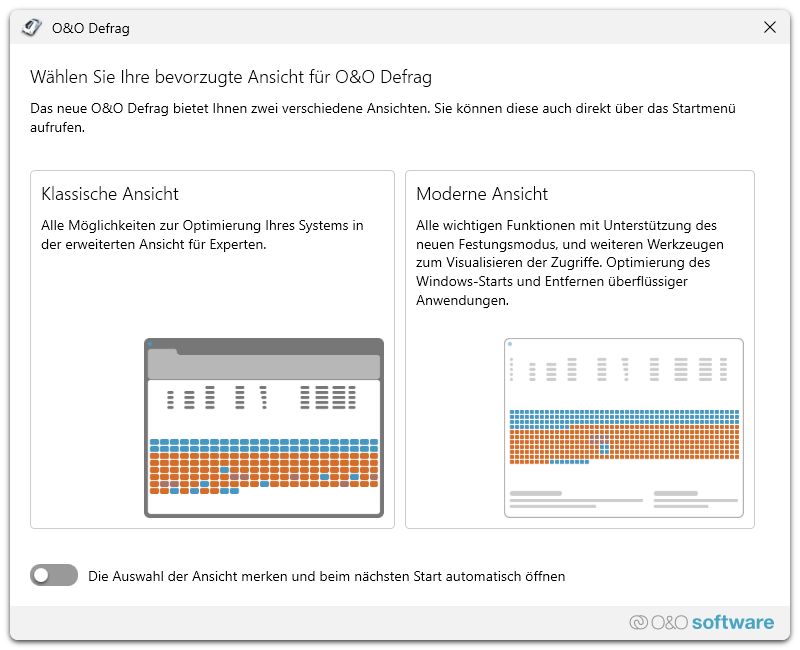
Choose Between Two Views: Classic and Modern!
You can choose between two views: Classic and Modern! Classic is the familiar user interface, while Modern is new, simplified, and optimized for “set-and-forget” users. Simply pick your style and let O&O Defrag do the rest. You can switch at any time between the Classic view with all expert settings and the streamlined Modern view focused on essentials.
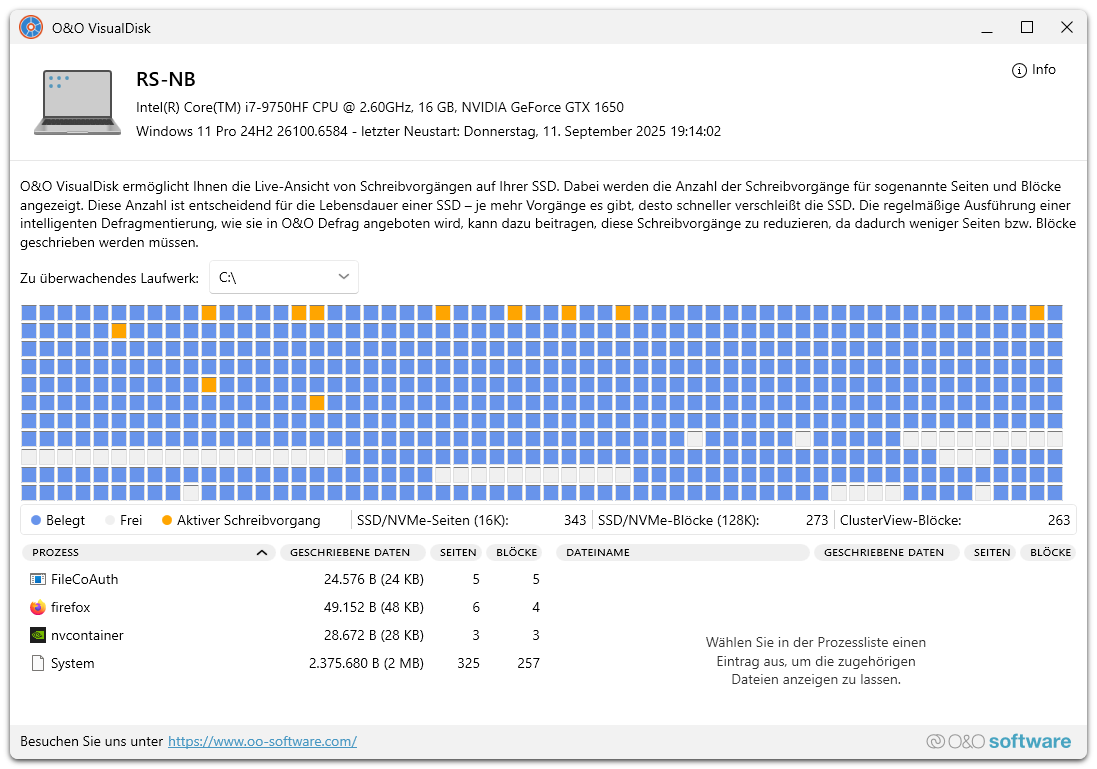
O&O VisualDisk
This feature visualizes write operations on flash-based storage such as SSDs and NVMe drives. Users can see how defragmentation helps extend the life of their drives and prevents unnecessary wear.
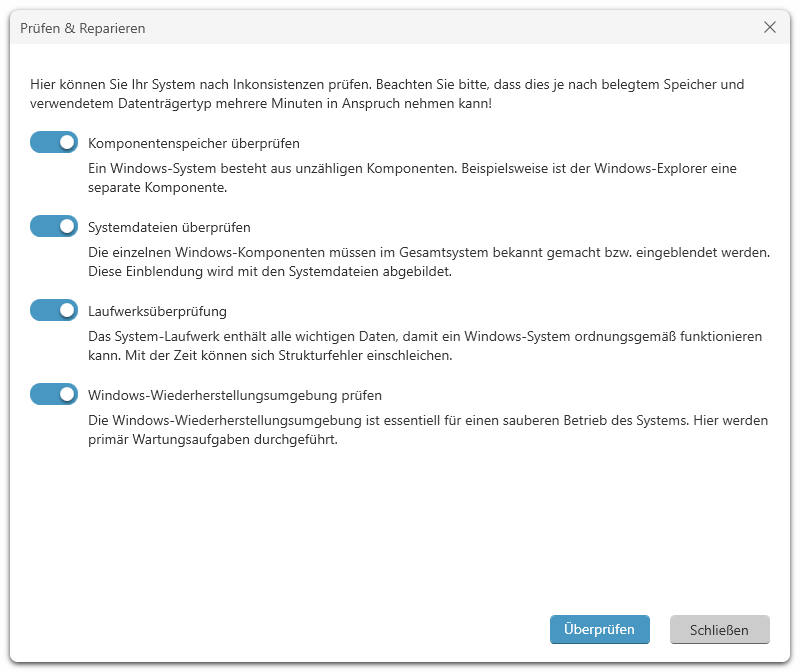
Check & Repair – Detect Inconsistencies
O&O Defrag scans your hard disk or SSD for inconsistencies that could potentially cause problems. Both the component storage and Windows system files are checked for errors. After the scan, O&O Defrag will display whether errors were found. The repair function allows most of these errors to be fixed directly.
Drive Health Analysis with S.M.A.R.T. Technology
This feature monitors the “health status” of your hard disks, SSDs, and RAIDs. Issues such as high temperature or errors reported by the drive itself are detected. If a problem arises, a notification will be displayed in the Windows Info Center.
Deskband Drive Activity in the Windows Taskbar

This function makes your computer’s activity more transparent. In the taskbar, you can see which drive is currently active. By right-clicking, you can start a search on the selected drive.
Analyzing Your Drives
By analyzing your drives, you’ll get an overview of how files are arranged on a disk and how fragmented they are:
- Select the drive you want to analyze from the list.
- Start the analysis via the ribbon bar or the context menu.
- Depending on the size of the drive, the analysis may take some time. The process is indicated by the drive icon and the progress bar.
- After completion, you can view a detailed status report.
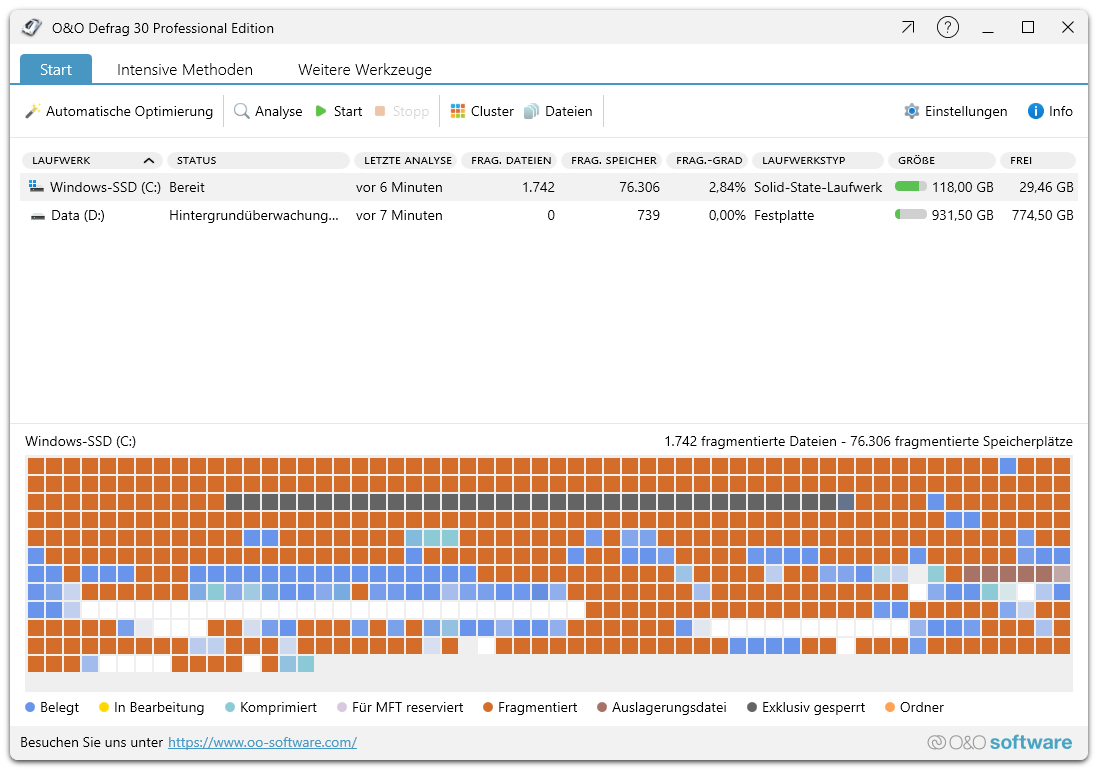
You can also analyze multiple drives at once. To do this, hold down the Ctrl key while selecting the drives.
Defragmenting Your Drives
With O&O Defrag, you can defragment individual drives or your entire PC with just a few clicks. The first defragmentation usually takes the longest because O&O Defrag needs to check your entire system and reposition all files optimally. We therefore recommend running the first defragmentation using the STEALTH or SPACE method.
Steps to defragment a drive:
- Select the drive you want to defragment from the list.
- Click the Start button in the ribbon bar to begin. By default, the SPACE method is used for HDDs and SOLID-Complete for SSDs. To change the method, open the Start button’s submenu and choose your preferred method.
- The process may take several hours depending on the size of your data. You can follow the progress via the drive icon and the progress bar.
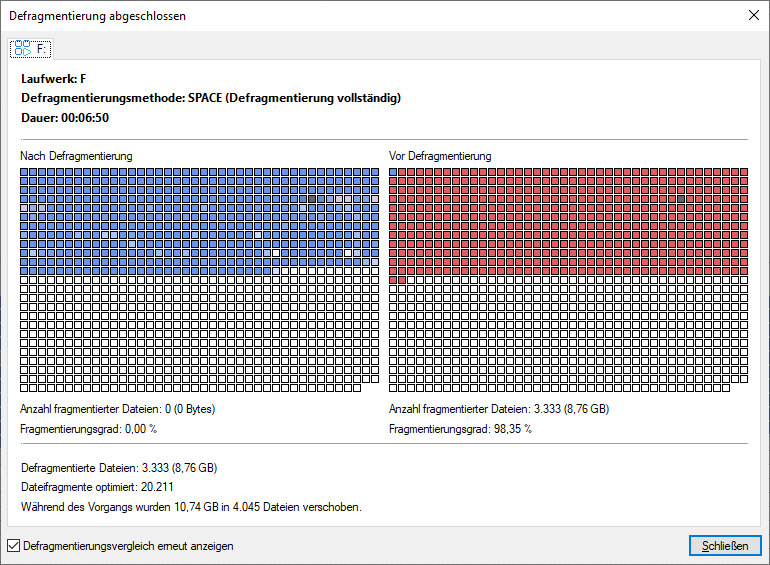
After completion, you can view a detailed status report.
We hope you enjoy using O&O Defrag!
More tips and tricks can be found on our product page: